Planning your wedding with family: the collaboration board
Invite family by email, choose what each person can see or change, vote on shortlisted vendors and share tasks on one family board.
Words by Ilyas Amar
27 June 2026
5 minute read
Updated 21 October 2026
Sources, estimates and corrections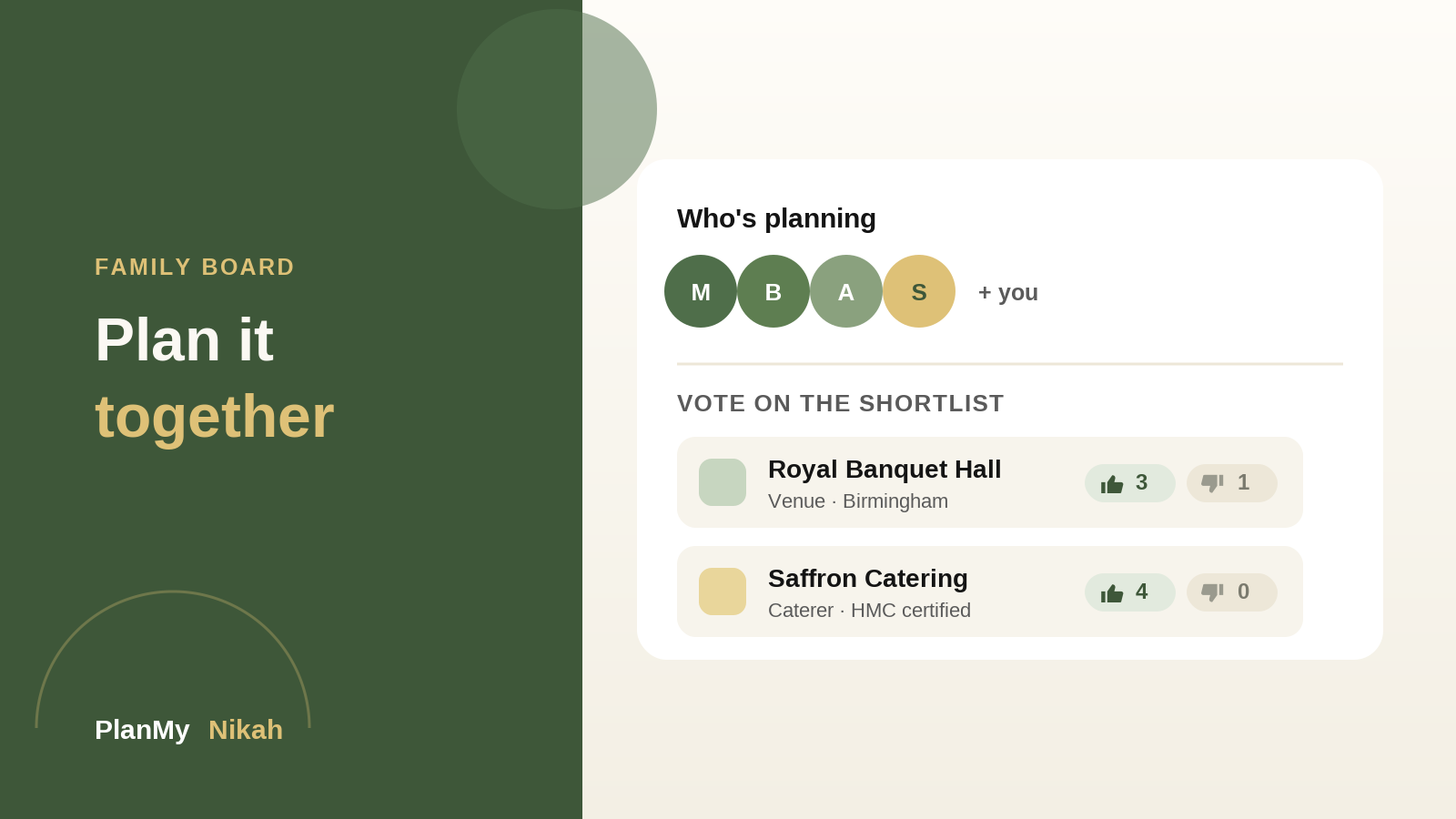
A Muslim wedding is rarely planned by two people alone. Parents, siblings and relatives all want to help, and tasks get booked twice or forgotten once. The Family area of PlanMyNikah lets you invite each person by email, choose exactly what they can see or change, and keep chat, decisions, tasks and vendor votes on a shared family board.
How do I plan my wedding with family on PlanMyNikah?
Open Family in your couple account, invite each person by name and email, and choose what each can do. Access is set per planning tool, as no access, can view or can edit, and separately for the family board, which holds chat, decisions and tasks. Relatives use their own PlanMyNikah account.
Important
Tools you leave on No access stay private. Start with the fewest tools a person needs, and add more later.
How do I invite family members?
Open Family, choose your wedding (or create your family plan), then choose Invite someone. Follow three steps: enter their name and email, choose which tools and board access they get, and review a plain-language summary. They get access only after signing in with the invited email, verifying it and accepting.
- Person: their name and email. They will need to sign in with and verify this email.
- Tools: access for each planning tool, plus a separate setting for chat, decisions and board tasks.
- Review: a summary of what they can do and what stays private, then Create invitation.
In People and access you can later copy an invitation link, change someone's access, resend an invitation, cancel a pending invitation or remove someone who has joined. People you have invited can also leave a wedding themselves.
What can each person see or change?
Each of eight planning tools has three settings: no access, can view or can edit. What a person can do depends on the tool, and some contact details and notes always stay private. Some tools can be limited further, for example to selected events, to assigned tasks only, or to website wording only.
| Tool | Can view | Can edit | Stays private |
|---|---|---|---|
| Checklist | Shared tasks and progress | Add, update and complete shared tasks | Assigned-task access only lets someone complete tasks assigned to them |
| Guest List | Guest names and event invitations | Add and update names and invitations | Contacts, household details, private notes and requirements |
| RSVP Tracker | Guest replies for shared events | Record or correct replies | Guest notes and invitation links |
| Seating Plan | Shared tables, guest names and assignments | Arrange guests and tables for shared events | Guest contacts and private requirements |
| Timeline | The shared event schedule | Update the shared schedule | Personal what-if scenarios |
| Budget | Budget total, categories and estimates | Change estimates and categories | Payment details, which need Payments access |
| Payments | Commitments, schedules and recorded payments | Update schedules and record payments or refunds | It cannot move money or change the Budget |
| Website | A preview of the draft | Edit permitted draft content | Only the owner can publish or change privacy |
Chat, decisions and board tasks have their own access setting, and it is never implied by the tools. The access levels on the family board are:
| Board access | What the person can do |
|---|---|
| No access | Chat, decisions and board tasks stay private |
| Viewer | See the shared plan, tasks and decisions, but change nothing |
| Contributor | Update board tasks assigned to them and vote on shortlisted vendors |
| Editor | Add, update and remove board tasks and vote. Member access stays with you |
How does the family vote on vendors?
Vendors on your shortlist appear on the family board for yes or no votes from contributors, editors and you. Viewers can see how the family is voting but cannot vote. Votes show where people stand, nothing more. The board does not contact vendors or book anyone, and the final decision stays with you.
The family decision room goes further for options you choose to share, such as a vendor, quote or package. Family members can mark support, a concern or a comment, and the room says that votes never contact a vendor, create a booking or decide the outcome.
What else is on the family board?
The board holds shared tasks, a group chat, a vendor voting list, recent activity and the decision room. Tasks have a title, an assignee, a due date and a status, and can be reordered. The board shows a status line saying whether live updates are connected, and it checks for changes automatically while the page is open.
Note
Board tasks, chat and decisions stay on the board. They do not update your Checklist tasks, and the board does not open Budget, Guests or the other planning tools. Those are controlled by the tool access you set when you invite someone.
Which languages does the family board support?
The family board's main controls work in English, Urdu, Bengali and Arabic, and you can choose the language on the board. Invitations and join screens are English only. Anything a person writes, such as a task or message, stays in their own words, and a requested translation appears as a preview to review.
The practical edit
Frequently asked questions
Who can I invite?
Anyone with an email address, such as a partner, parents, siblings, close friends or a planner. They use their own PlanMyNikah account, and you choose their access tool by tool.
Can family members edit my whole plan?
Only if you allow it. Each person gets no access, can view or can edit for each tool, and board access is a separate setting. Tools you leave on No access stay private.
What can the family vote on?
The vendors on your shortlist. Each person with voting access gives a yes or no vote, and the board shows where everyone stands.
Is it free?
Yes. The family tools are free for couples with a PlanMyNikah account, alongside the rest of the planning tools.
Can I change someone's access later?
Yes. In People and access you can change access, resend or cancel an invitation, or remove someone who has joined.
The letter from the editor
Wedding planning tips, straight to your inbox
Nikah checklists, budget advice and practical ideas, about twice a month. No spam.
Continue the edition
Related reading

Asian Bridal Makeup Trial: A UK Muslim Bride’s Checklist
Make your bridal trial a rehearsal for the whole look, not just the makeup. A practical guide to hijab and dupatta setting, privacy, photographs and preparation for your nikah or walima.

Halal Wedding Cake Guide for UK Muslim Couples
Choose a halal wedding cake with confidence. This practical UK guide covers ingredients, certification, allergens, tastings, delivery and venue setup.

Asian Wedding Food Menu Ideas for UK Muslim Couples
Build a balanced halal menu for your mehndi, nikah, baraat or walima. This practical UK guide covers dishes, service styles, allergies and tasting questions.