How to shortlist and compare wedding vendors
Save vendors with one tap, compare two to four side by side, keep private notes and decisions, and let family vote on your favourites.
Words by Ilyas Amar
27 June 2026
4 minute read
Updated 21 October 2026
Sources, estimates and corrections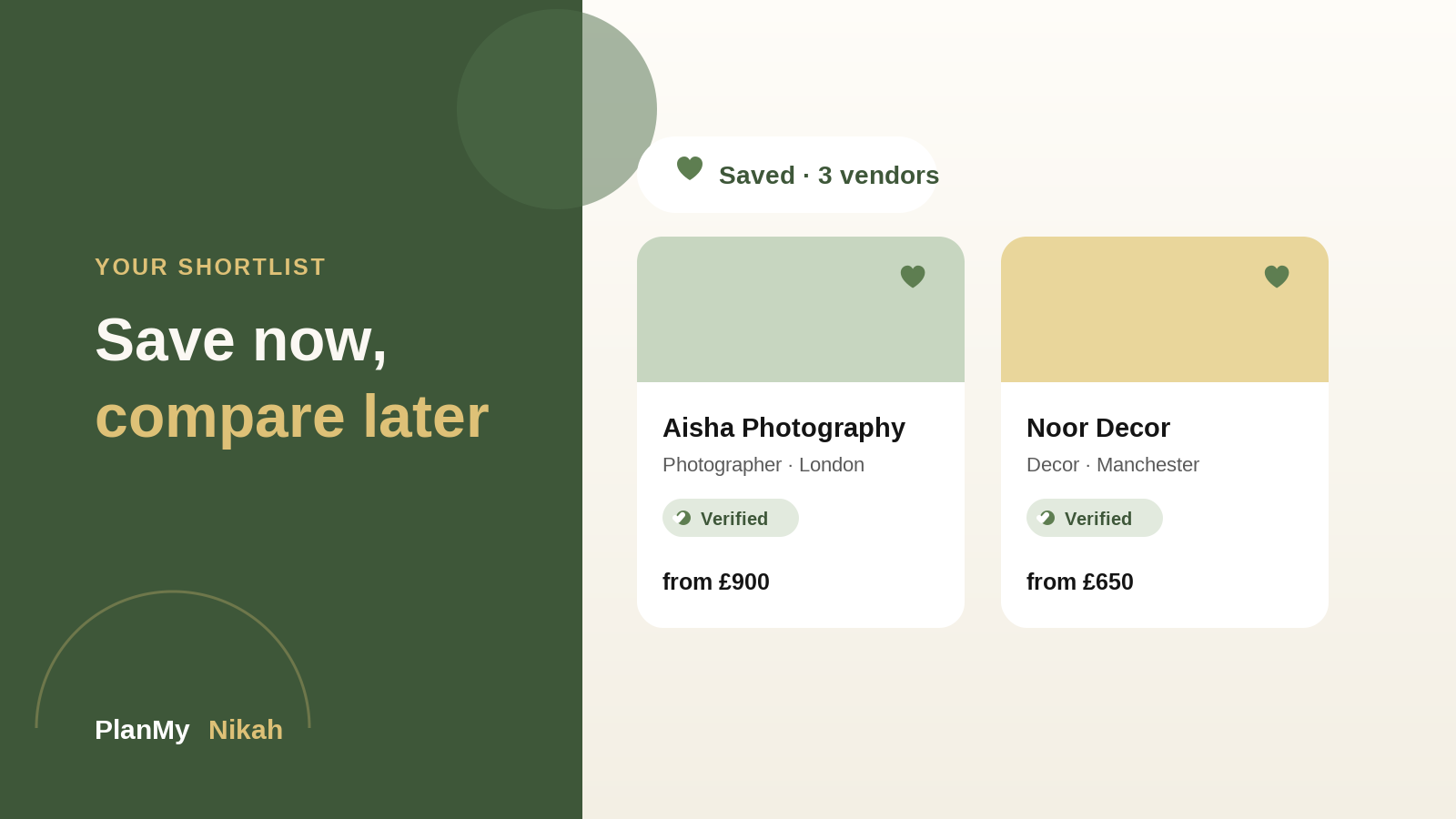
The shortlist is where the vendors you save are collected. Save a vendor from search results, a category page or their profile, then compare two to four side by side, keep private notes and decisions, and collect family votes. This guide describes the tool as it works on 20 October 2026. You can save without an account, but those saves stay on that device, so sign in first to keep your shortlist in your account.
How do I save a vendor to my shortlist?
Tap the heart on a vendor card in search results or a category page, or use Save on the vendor's profile. Tap again to remove them. Signed in, saves go to your account. Signed out, they stay on that device only and are not copied when you sign in later, so sign in before you start saving.
- Browse vendors or venues and tap the heart on any card, or Save on a profile. On a wide screen a small panel shows how many vendors you have saved; on a narrow screen a short message confirms the save.
- Sign in first if you want your shortlist kept in your account and available on every device.
- Open Your shortlist to see everything you have saved.
Note
If you saved vendors while signed out, the page says they are saved on this device only and will not be copied automatically. Save them again after signing in.
Where do I see and manage my saved vendors?
Open Your shortlist. It shows counts for Saved, Interested, Contacted, Quoted, Booked and Winners, with filter chips for each status. Every vendor card shows price, location, reviews and badges, and under Your decision you set a Status, an Expected price, Private notes and whether to mark the vendor as your winner.
| On the vendor card | Who can see it |
|---|---|
| Status: Interested, Contacted, Quoted, Rejected or Booked | Only you |
| Expected price and Private notes | Only you; vendors never see your notes |
| Winner for this category | Only you |
| Family votes and Family comments | You and the people in your Family group |
Use Browse vendors, Browse venues and Invite a vendor you're using at the top of the page to keep adding. Invite a vendor asks for their email, with an optional business name, category and personal note.
How do I compare vendors side by side?
Press Add to comparison on two to four vendor cards, then press Compare selected. The comparison table shows each listing's current public details, such as listed category, location, starting price and capacity. It does not rank vendors or change your shortlist. Your private notes, decisions and family votes sit in a separate section below it.
The table has separate rows for Listing verification and Public halal verification status. These show what each listing publishes. Every listing is human-reviewed before it goes live, Verified means approved current identity evidence, and insurance and halal badges are separate checks, so a listing can be live without them. See how we verify.
Tip
Aim for three to five genuine options per category. If you would not be happy booking a vendor, do not keep them "just in case": a cluttered shortlist makes the final choice harder.
How do family votes and comments work?
If you have set up a Family group in Family, your saved vendors sync to it. Members can then vote yes or no on each vendor and leave comments, and you see who voted which way. Helpers see a Family shortlist view with the vendors to vote on. The shortlist never creates a Family group for you.
How do I choose a winner and move to an enquiry?
On a vendor card, press Mark as winner to pick one vendor per category; the card then reads Winner for this category. Choosing another vendor in the same category switches your winner. Then open the vendor's profile and press Send enquiry. The shortlist records your decision but never contacts a vendor on your behalf.
The practical edit
Frequently asked questions
Do I need an account to save vendors?
No, but without one your saves stay on that device only and are not copied when you sign in. Sign in first if you want your shortlist in your account, on every device, and shared with your Family group.
How many vendors can I compare at once?
Two to four. Press Add to comparison on each vendor card, then press Compare selected. With only one selected, the page asks you to select at least one more.
How many vendors should I shortlist?
Three to five per category is a sensible target: enough to compare properly and few enough to decide. This is a planning suggestion, not a rule.
Can my family see my shortlist?
Yes, through Family. If you have a Family group, your saved vendors sync to it and members can vote and comment. Your Status, Expected price and Private notes stay private to you.
Does comparing vendors rank them for me?
No. The comparison table lists current public details side by side and does not rank vendors, make a decision for you or change your shortlist. If you use Hilal's optional neutral explanation, it also does not pick or rank a vendor.
The letter from the editor
Wedding planning tips, straight to your inbox
Nikah checklists, budget advice and practical ideas, about twice a month. No spam.
Continue the edition
Related reading

Asian Bridal Makeup Trial: A UK Muslim Bride’s Checklist
Make your bridal trial a rehearsal for the whole look, not just the makeup. A practical guide to hijab and dupatta setting, privacy, photographs and preparation for your nikah or walima.

Halal Wedding Cake Guide for UK Muslim Couples
Choose a halal wedding cake with confidence. This practical UK guide covers ingredients, certification, allergens, tastings, delivery and venue setup.
Asian Wedding Food Menu Ideas for UK Muslim Couples
Build a balanced halal menu for your mehndi, nikah, baraat or walima. This practical UK guide covers dishes, service styles, allergies and tasting questions.